
Quick Start
1. Install the Remote Script
Section titled “1. Install the Remote Script”- Download the Remote Script and unzip it
- Copy the
param8folder to your Ableton Remote Scripts directory:- macOS:
~/Music/Ableton/User Library/Remote Scripts/ - Windows:
~\Documents\Ableton\User Library\Remote Scripts\
- macOS:
- Restart Ableton Live
2. Connect the controller
Section titled “2. Connect the controller”Plug param8 into your computer via USB-C. It appears as a class-compliant MIDI device — no drivers needed.
3. Configure Ableton Live
Section titled “3. Configure Ableton Live”- Open Preferences → Link, Tempo & MIDI
- Under Control Surface, select param8
- Set Input and Output to param8 (DAW)
- Under Input Ports and Output Ports, activate Remote for param8 (User)
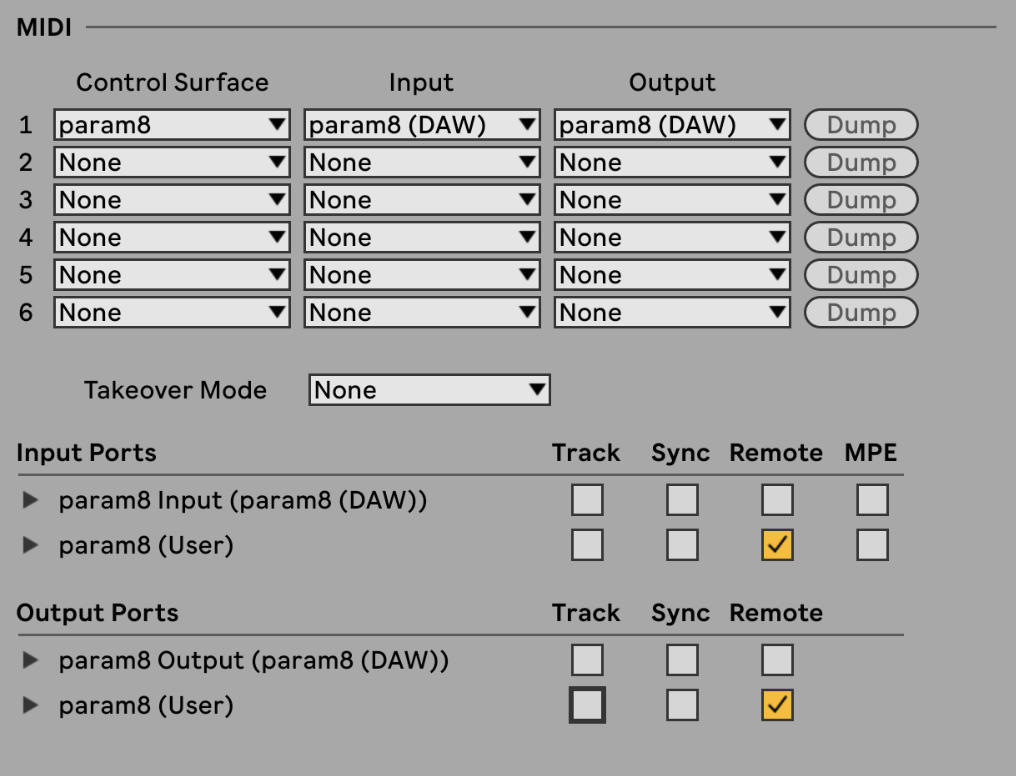
The controller should light up and display parameter names once connected.
4. Using param8
Section titled “4. Using param8”- Turn an encoder to change a parameter value
- Press Shift + Button 1–6 to switch presets
- Press Shift + Button 7 for Global mode
- Press Shift + Button 8 for Device mode
- Hold Latch then turn encoders to queue changes — release to send them all at once
- Press Shift + Latch to enter Revert mode
5. Web Editor
Section titled “5. Web Editor”Open the param8 editor in Chrome (WebMIDI required) to configure:
- Encoder CC/channel assignments
- Button CC/Note assignments and toggle mode
- Preset names
- Display layout
- Screen saver timeout