
User Presets
Presets 1 to 24 can be configured freely.
Each user preset stores independent settings for all 8 encoders and 8 buttons:
- Encoders: MIDI CC number, channel, custom name
- Buttons: MIDI CC or Note, number, channel, toggle/momentary mode, custom name
- Preset name: shown in the display header
The settings can be edited using the Web Editor.
Web Editor
Section titled “Web Editor”To use the Web Editor, connect your param8 device to the computer, then click on CONNECT PARAM8.
A popup window will appear listing all the Serial devices detected by your computer. Find and select param8 in the list.
The Web Editor will retrieve all the Control settings automatically.
You can then edit the controls. All changes are applied immedialtely.
You can store and import Presets using the Save and Load buttons.
Renaming Controls from Ableton Live
Section titled “Renaming Controls from Ableton Live”Automatic naming / values watcher
Section titled “Automatic naming / values watcher”You can connect a Control to a specific parameter. This renames the Control automatically and allows the parameter to display its real value.
- Select a parameter in your DAW
- Turn or Push the control you want to rename
- Double-tap the Latch button on param8
- The parameter’s name is sent from Ableton Live and stored in the preset. This will add a Watcher to the Parameter.
Parameter Watchers
Section titled “Parameter Watchers”When a parameter has an active watcher, its display shows the value received from Live rather than the raw encoder position. This keeps the display in sync with the actual parameter state.
To remove the Watcher, double-tap the Latch button and hold the button on the second tap. The control name and value will revert to the standard MIDI message.
Per set controls naming
Section titled “Per set controls naming”You can use Racks to have different control names for each Live set.
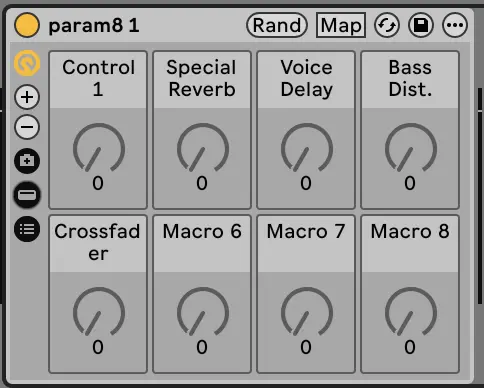
- Add a Rack on a Track (MIDI, Audio or Instrument Rack)
- Rename it like that : “param8 n” with n being the preset number
- Rename the Macros. Macros 1-8 will rename Encoders 1-8, Macros 9-16 with rename Buttons 1-8
Here is an example of Controls 1 to 5 being renamed for Preset 1
Dynamic naming
Section titled “Dynamic naming”If you want the name the controls to change in a Set, you can use Racks chains.
- Add a Rack on a Track (MIDI, Audio or Instrument Rack)
- Rename it like that : “param8 n” with n being the preset number
- Create as many chains as needed
- Add a Rack on each chain and rename its Macros
- Set or automate the Chain Selector. The active Chain will rename the Controls accordingly.
Here is an example of Controls 1 to 5 being renamed for Preset 1 with Chain 3 active
